Gaming · Fix it
Starlink lag and ping spikes in games: 9 fixes, in order
Already have Starlink and the matches stutter? Start at fix 1 and stop when the spikes do. The order runs from cheapest and most likely to the problems you can only rule out.
Most Starlink lag you can fix starts inside the house: wire the console, get the router into the open, and stop background downloads; after that, check the app for obstructions and outages before blaming the network.
Starlink’s published figures are good for gaming on average: a US median peak-hour latency of 25.7 ms in June 2025. Spikes come from short events the average hides, such as Wi-Fi, a tree in the dish’s view, satellite switches and busy evenings. The first eight fixes are yours. The last one helps you tell when it isn’t you.
What normal looks likeChecked Nov 3, 2026
- Median, US peak hours
- 25.7 ms Starlink, router to internet, June 2025
- Nearly all US samples under
- 55 ms Starlink says fewer than 1% of its US latency measurements are above 55 ms
- FCC label, continental US
- 25–50 ms Typical latency on Residential
- Peak hours
- 6 pm to 11 pm Local time, per Starlink’s help center
- App logs outages from
- 100 ms Starlink’s own uptime check on every dish
- Jitter or packet-loss figure
- Not published Starlink publishes neither for the US
Read on Nov 3, 2026. Your game’s ping adds the trip from the ground station to the game server, so it reads higher than these.
Why Starlink spikes when the average is fine
A latency figure is an average over many samples; a game lives in single moments. A Starlink dish hops between satellites many times a minute, and Starlink says most of those hops go unnoticed. A switch at the wrong moment, a branch in the dish’s view or a burst of evening traffic adds a spike lasting a fraction of a second: a shot that doesn’t land, a dropped combo.
That’s why a speed test can look fine while games stutter. Starlink says its default app test measures from the router to the internet, not over your Wi-Fi, and a one-second dropout barely moves a speed result. Starlink doesn’t publish a jitter or packet-loss figure for the US, so there’s no official “normal” for spikes.
The 9 fixes, in order
Each fix is cheaper or more likely than the next, and makes the later checks easier to read.
Step 1: Wire the console or PC to the router
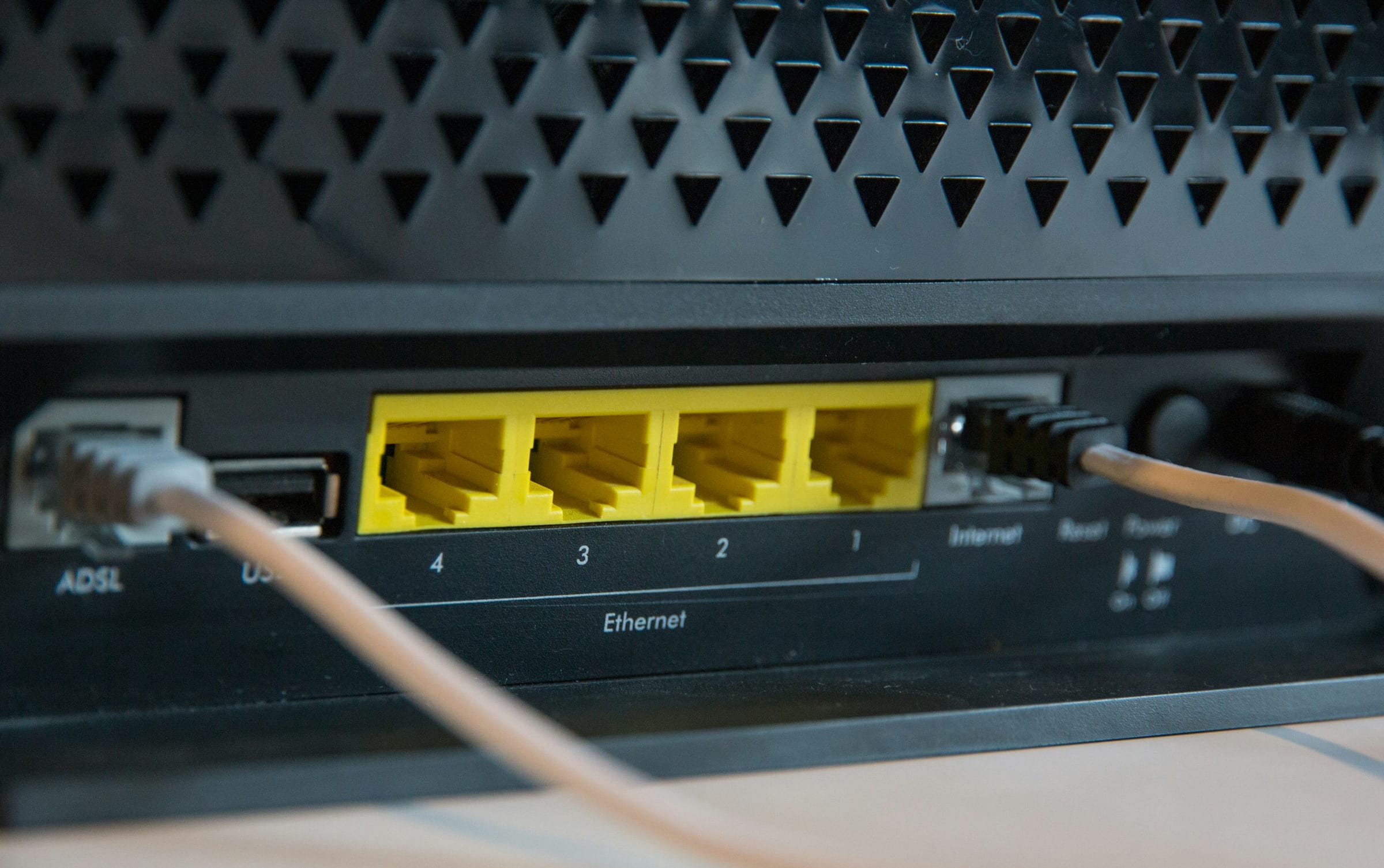
Wi-Fi is the most common cause of spikes you can fix yourself, and a cable removes it. Starlink says a cable below Cat5e can limit speeds; the rating is printed on the jacket. Router 3 (Standard 4 X kit) has a WAN port and two LAN Ethernet ports under a rubber cover; Router Mini has two Ethernet ports, one WAN (for the Starlink) and one LAN for a wired device such as a console or PC. The older Gen 2 router (Standard Actuated kit) has no Ethernet port; you need the Starlink Ethernet Adapter for a wired console or your own router. The console setup guide shows the wiring.
Step 2: If a cable can’t reach, use 5 GHz
Starlink tells customers to put gaming consoles, 4K TVs and computers on the 5 GHz band. It carries more but fades faster through walls; Starlink notes that brick, stone, mirrors or several walls can lower coverage: add mesh nodes or use a wired connection.
Step 3: Check the obstruction map in the Starlink app
Starlink’s obstruction guide names gaming directly: if performance is poor under heavy use such as gaming, move the dish, clear the obstruction or raise the mount. After setup, the app shows a live obstruction map of where blockages are and how they may affect you. Keep both sides in mind: Starlink’s switches around trees and buildings are generally imperceptible; Starlink says not to move the dish for that alone, but a tree or roofline that stays in the dish’s view can still cause on-and-off outages, lost packets and slower speeds. Starlink doesn’t publish step-by-step instructions for reading the tool, so look for blocked patches that line up with your worst matches.
Step 4: Read the “Recent interruptions” alert
The app’s Statistics show speed, uptime, latency, outages and alerts, viewable remotely. The alert gamers should know is the “Recent interruptions” alert: online and healthy now, but elevated packet loss in the last 15 minutes; may be weather, network or obstructions. Note the time of a bad match: if an outage in the Event Log or an alert lines up, the problem is the sky or the network, not your game.
Step 5: Move the router
Starlink’s own placement advice:
- Central location. Place the router in the part of the home where you most often use your phone, tablet, or computer.
- Flat surface. Place the router on a hard, flat surface, such as a table, countertop, shelf, or nightstand. A surface at least halfway up the room is better than the floor.
- Open space. Do not place the router in a cabinet, a media console, or a closet.
- Few barriers. The connection is best in the same room, or about one to two rooms away.
- Interference. Keep the router at least 20 feet away from microwaves, refrigerators, metal, concrete, brick, fluorescent lights, other Wi-Fi networks, and bad electrical connections.
Step 6: Pick the closest server region
Starlink says the pure distance to the satellite and back adds usually under 10 ms of round-trip time; laser links between satellites can add more. The rest of your in-game ping is the ground trip from a Starlink ground station to the game’s data center, and Starlink doesn’t publish which ground station serves a given home. Where a game lets you choose, try each nearby US region (East, Central or West) and keep the one with the lowest ping.
Step 7: Stop background downloads and streams
Starlink says it added fq_codel queue management to its Wi-Fi router so a big download on the same Wi-Fi does not raise game latency. It can’t make room that isn’t there, though, and Starlink warns that game updates can be over 100 GB. Pause updates before a ranked session and schedule them overnight (download tips). The app can “identify devices connected to your network”, which helps you find the tablet streaming 4K in the next room.
Step 8: Fix double NAT, or use bypass properly
Starlink itself warns of double NAT when you mix the Starlink Wi-Fi router with an Ethernet adapter and another router. Microsoft says two devices doing NAT cause a 'Double NAT detected' error and trouble hosting, joining or hearing players. Home plans already put you behind shared addresses (see NAT type), so pick one router to run your network. If it’s yours, use bypass mode. Bypass mode switches off the Starlink router's Wi-Fi so your own router runs the network; the app can turn it on but only a factory reset turns it off. Your router then replaces Starlink’s queue management (our reading), so switch on its own, often called SQM or smart QoS. For more coverage only, a Starlink mesh router extends the Wi-Fi without a second NAT layer (our reading).
Step 9: Rule out weather, peak hours and the network
Some lag isn’t yours to fix. Starlink says rain, snow or hail at the heavier end can interrupt service for a moment, and the dish can melt snow; install it where snow buildup and other obstructions don’t block the field of view. Its help center defines peak hours as 6 pm to 11 pm local time, when speeds can be slower, and Residential Max outranks the 100 and 200 Mbps Residential tiers, so homes on those two are likelier to slow down on a congested network. When the packet-loss alert keeps coming back with a clear sky, Starlink says to submit a support ticket.
When it’s the network, not you
After fix 8 your house is out of the question. What’s left shows up as patterns:
- Every evening. The 6 pm to 11 pm peak window, which homes on the 100 and 200 Mbps tiers feel more than those on Residential Max, per Starlink.
- Only in storms or snow. Weather. It passes; clear any snow pile that blocks the dish’s view.
- Random outages, clear sky, clean obstruction map. Log the times, check the Event Log, and open a support ticket if the packet-loss alert keeps returning.
- One game only. Try another region and check that game’s server status before touching the dish.
What no fix can change
Satellite switches, weather and evening congestion are part of how the service works, and Starlink’s own figures put some measurements above 55 ms. For ranked shooters or fighting games, a cable or fiber line at your address will still give steadier ping. The genre guide shows which games feel spikes most.
What won’t help
- “Ping booster” apps. They can change your route on the ground, but nothing on your PC shortens the trip to the satellite or stops a switch.
- Rebooting before every match. A reboot takes the dish offline while it reconnects. Once while troubleshooting is enough.
- Moving the dish for every blip. Move it when the obstruction map and your bad matches line up, not before.
What gamers and cord-cutters ask
Why does Starlink have ping spikes?
Three causes account for most of them: the dish switching between satellites (Starlink says this happens many times per minute and is often not noticed), obstructions such as a tree in the dish’s view, and network congestion in the evening. Wi-Fi in your house adds a fourth. Starlink says fewer than 1% of its US latency measurements are above 55 ms; a game feels those moments.
How do I fix Starlink ping spikes?
In order: wire the console, use 5 GHz if you can’t, check the obstruction map, read the app’s alerts, move the router, choose the nearest server region, stop background downloads, remove double NAT, then rule out weather and peak hours.
Why is Starlink lagging when I game but the speed test looks fine?
A speed test mostly measures how much data moves. The Starlink app's default speed test measures from the router to the internet, not over your Wi-Fi, and shows latency, which Starlink says means lag in games. A one-second dropout barely moves a speed result, but it freezes a match. Run the app’s advanced Device to Internet test to include your Wi-Fi.
Why do I keep disconnecting from games on Starlink?
Short disconnects usually line up with outages the app records: check Statistics and the Event Log for the same minute. Outages that cluster in one part of the sky point to an obstruction; outages in heavy rain or snow point to weather.
How do I fix packet loss on Starlink?
Starlink blames elevated packet loss on extreme weather, a temporary network issue or obstructions. You can fix the obstruction part by moving or raising the dish. If the app keeps showing the packet-loss alert with a clear sky and dry weather, Starlink says to submit a support ticket.
Does the Starlink router cause ping spikes?
Not by itself, in Starlink’s telling: it added queue management so one person’s download doesn’t raise another’s game latency. Distance and walls between router and console cause more spikes than the router does. For most homes the best setup is the Starlink router in the open with the console on a cable.
Receipts for the numbers above
- Starlink’s July 2025 network post (looked up Nov 3, 2026)
- Starlink FCC broadband label, Residential (looked up Nov 3, 2026)
- Starlink latency report (PDF, March 2024) (looked up Nov 3, 2026)
- Starlink support: evening and peak-hour speeds (looked up Nov 3, 2026)
- Starlink support: what obstructions do (looked up Nov 3, 2026)
- Starlink help-center search (US) (looked up Nov 3, 2026)
- Starlink support: running a speed test (looked up Nov 3, 2026)
- Starlink support: slow-speed fixes (looked up Nov 3, 2026)
- Starlink support: router Ethernet ports (looked up Nov 3, 2026)
- Starlink support: on-and-off connection fixes (looked up Nov 3, 2026)
- Starlink support: Mesh Wi-Fi (looked up Nov 3, 2026)
- Starlink support: fixing obstructions (looked up Nov 3, 2026)
- Starlink support: checking the sky before install (looked up Nov 3, 2026)
- Starlink update on beam switching (looked up Nov 3, 2026)
- Starlink support: app alerts (looked up Nov 3, 2026)
- Starlink support: watching performance in the app (looked up Nov 3, 2026)
- Starlink support: app event log (looked up Nov 3, 2026)
- Starlink support: better Wi-Fi (looked up Nov 3, 2026)
- Starlink app, US App Store listing (looked up Nov 3, 2026)
- Starlink support: data use tips (looked up Nov 3, 2026)
- Starlink support: DHCP settings (looked up Nov 3, 2026)
- Xbox Support: NAT and multiplayer errors (looked up Nov 3, 2026)
- Starlink support: bypass mode (looked up Nov 3, 2026)
- Starlink support: weather and service (looked up Nov 3, 2026)
- Starlink support: snow, rain, wind and heat (looked up Nov 3, 2026)
- Starlink US service plan descriptions (looked up Nov 3, 2026)
Every figure keeps the date we last looked it up; our fact rules say how. When one turns out wrong or stale, the fix is dated on the corrections page.