Console setup
Xbox, PS5 and Switch on Starlink: a wired setup and the tests to run
You already have Starlink. Here’s how to get the console onto it properly: which router you have, where the cable goes, what to do when it can’t, and how to read each console’s network test.
Run an Ethernet cable from a spare LAN port on the Starlink router to the console. If a cable can’t reach, use the 5 GHz Wi-Fi band. Then run the console’s own network test.
Your router decides how many wired ports you get: Router 3 has 2 LAN ports, Router Mini leaves 1, and the older Gen 2 router has none without an adapter. Most consoles need nothing else. Bypass mode and your own router are for people who need more ports or their own Wi-Fi system. Set up right, they can tidy the house side of NAT, but they can’t make the IPv4 side Open on a home plan, because the shared address sits at Starlink’s end.
Your router · ports for a consoleStarlink help center
- Router 3 (Standard 4 X)
- WAN + 2 LAN LAN ports sit under a rubber cover.
- Router Mini (Standard 4, V5)
- WAN + 1 LAN Indoor only. Add a switch for more ports.
- Gen 2 router (older kit)
- No Ethernet Needs Starlink’s Ethernet Adapter.
- Cable
- Cat5e or better Starlink says anything below Cat5e can limit speeds.
- Wi-Fi band for consoles
- 5 GHz Starlink’s advice for consoles, 4K TVs and computers.
Router line-up as Starlink’s US order list showed it on Nov 3, 2026. Sources at the end of the page.
Which router came with your kit
Three home dishes sat on the US Residential order list in our Nov 3, 2026 pull, each sold with its own router. The address and plan decide which kit you’re offered; Starlink’s plan page adds that Residential Max comes with a Standard Starlink and a Router 3 in most markets; Residential 200 Mbps includes a Gen 3 (Router 3) Wi-Fi 6 router.
| Kit | Router | Wired ports for a console |
|---|---|---|
| Standard 4 X | Router 3 | Router 3 has a WAN port and two LAN Ethernet ports under a rubber cover. |
| Standard 4 | Router Mini | Our reading of Starlink’s kit and router pages: the power supply's Ethernet cable uses one Router Mini port, so one port is left for a wired console or PC. |
| Starlink V5 | Router Mini | Router Mini has two Ethernet ports: one WAN and one LAN. Add a switch for more. |
| Standard Actuated (older) | Gen 2 router | It has no Ethernet port; you need the Starlink Ethernet Adapter for a wired console or your own router. |
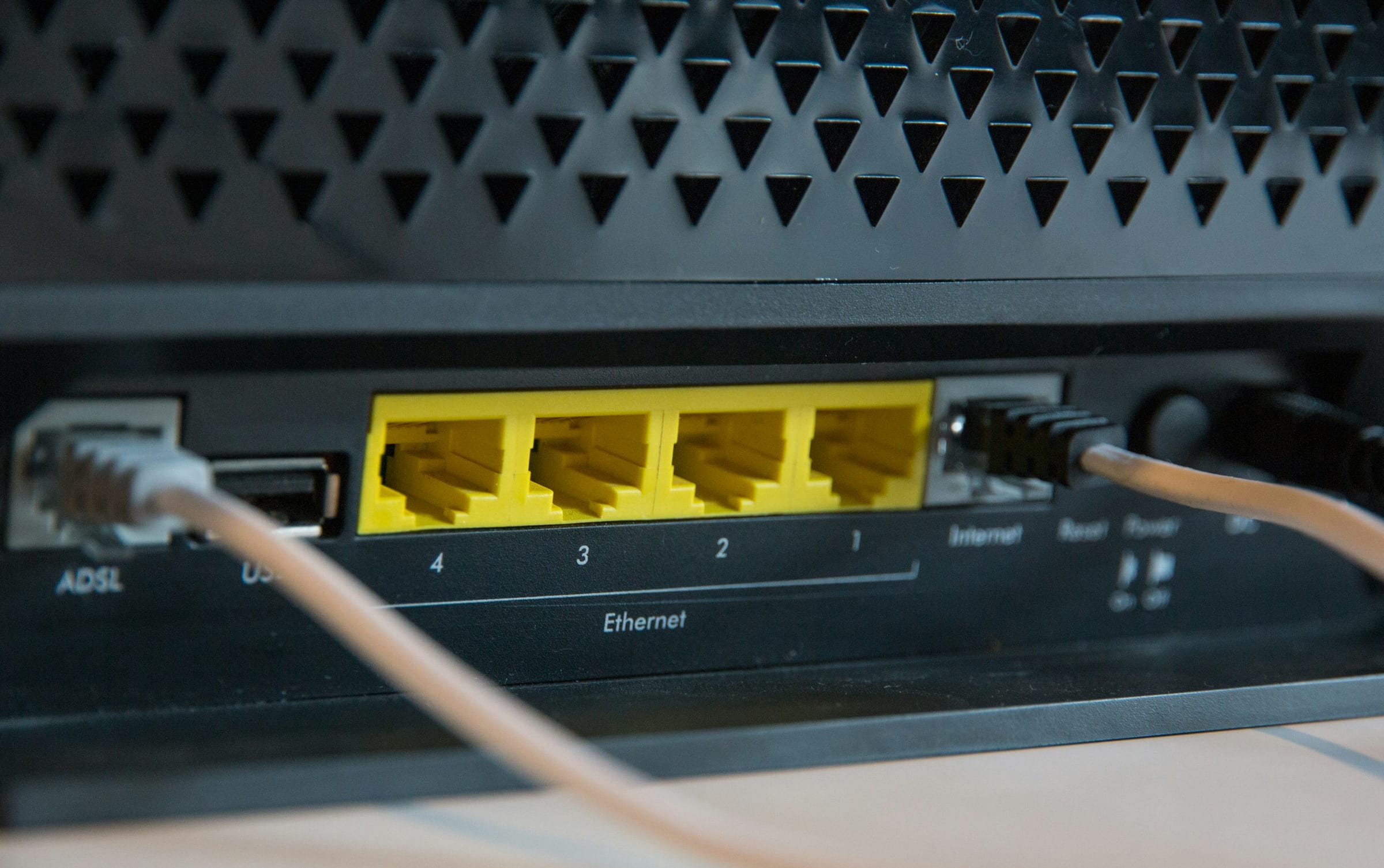
Not sure which you have? Router 3 is the larger router with its ports behind a rubber cover. Router Mini is the small one, and it’s indoor only. The Gen 2 router has no Ethernet socket at all.
Wire the console, step by step
Step 1: Find a spare LAN port
On Router 3, Starlink says: “The WAN port is the leftmost port.” The LAN ports sit beside it, under a rubber cover. On Router Mini, the Starlink cable takes one port and leaves one for you. The older Gen 2 router has no Ethernet port, so it needs Starlink’s Ethernet Adapter first.
Step 2: Use a Cat5e cable or better
Starlink says: “If it is below Cat5e, it can limit your speeds. Look for the printed markings on the cable. Use a Cat5e cable or higher.” An old cable from a drawer is worth checking.
Step 3: Add a switch if you run out of ports
A small network switch plugged into the router’s LAN port turns one port into several, for a second console or a PC. Starlink suggests the same for its Ethernet Adapter.
Step 4: Leave the console on automatic settings
Plug the cable in and let the console pick up its address automatically. Don’t set fixed addresses or DNS unless you have a reason. On PS5, never choose an IPv6-only setting: Sony says the console still needs IPv4.
Step 5: Run the console’s network test
Each console has a built-in connection test that reports a NAT type and basic speed. Run it once in the morning and once around 9 pm local, and note both results. The menu paths are below.
If a cable can’t reach
Wi-Fi works for most games; it just adds a hop that can drop packets. Make that hop as short and clean as you can:
- Use 5 GHz. Starlink says: “Connect high-bandwidth devices to the 5 GHz band, such as 4K smart TVs, gaming consoles, and computers.”
- Place the router well. Starlink’s tips: central, on a raised flat surface, in the open, few walls, 20 ft from interference.
- Mind the walls. Brick, stone, mirrors or several walls can lower coverage: add mesh nodes or use a wired connection.
- Mesh near the console. Starlink's current routers, Router Mini and Router 3, use Wi-Fi 6; Router 3 is tri-band with a dedicated mesh backhaul and Starlink lists gaming among its uses. A mesh node in the game room shortens the weakest hop.
- Find out if Wi-Fi is the limit. In the Starlink app, the Device → Router test measures Wi-Fi speed; if it is lower than the router-to-internet test, Wi-Fi is the limit.
Each console’s network test
Each console reports its own NAT type; the Starlink app doesn’t. Menu names shift with system updates, so if one has moved, look for “network” in the console’s settings.
Xbox Series X|S
Settings, then General, then Network settings. Choose Test network connection, then Test NAT type. The detailed statistics show latency and packet loss.
Reads: Open, Moderate or Strict.
PlayStation 5
Settings, then Network, then Connection Status. Choose Test Internet Connection. It reports the connection, speeds and NAT type.
Reads: Type 1, 2 or 3.
Nintendo Switch
System Settings, then Internet. Choose Test Connection. It reports the connection, speeds and NAT type.
Reads: A to F.
Moderate or Strict on Xbox, Type 3 on PlayStation or a low letter on Switch is common on a Residential plan, because the IPv4 address is shared at Starlink’s end. The NAT type page covers what that limits and what helps. For latency over a whole evening, the Starlink app’s statistics show speed, uptime, latency, outages and alerts.
Bypass mode and your own router
Bypass mode switches off the Starlink router's Wi-Fi so your own router runs the network; the app can turn it on but only a factory reset turns it off. Starlink says it’s required on Standard Actuated kits and on Standard kits when your own router should run Wi-Fi; Performance kits plug your router straight into the power supply instead. If you go this way, set your router’s WAN to DHCP, as Starlink’s guide says, and know that Starlink makes no promise about how third-party equipment performs.
What you gain
More LAN ports, your own Wi-Fi system, and a router with its own traffic priority and UPnP settings for the devices inside your house.
What you give up
Starlink says of its own router: “With active queue management enabled, when one person on your WiFi is downloading a big file, and another is playing a game, the game latency will not be affected by the download.” With your own router in charge, that queue manager is out of the path (our reading). And UPnP on your router still can’t open the shared IPv4 address at Starlink’s end.
For one console and a PC, the Starlink router is usually the better pick. Bypass earns its place when you’ve outgrown the ports, or you already own a mesh system you trust.
Double NAT: the mistake to avoid
Plugging your own router in behind the Starlink router, without bypass, means two routers each translating addresses. Starlink flags it in its own setup notes: “If you plan to use Starlink WiFi and ethernet dongle be mindful of double NAT issues!” Microsoft spells out the cost: “If both devices are performing NAT, this can generate a Double NAT detected error and you may have trouble hosting or joining multiplayer games and parties, or hearing other players.”
How to spot and fix double NAT
Signs: the Xbox test says “Double NAT detected”, or your NAT type gets worse after adding a router. The fix is to make one device do the routing: put the Starlink router in bypass mode, or set your own router to access-point mode so the Starlink router stays in charge (our reading). On a home plan, there’s already NAT at Starlink’s end, so don’t add a layer at home.
Updates without wrecking a match
Starlink warns that video game updates can be over 100 GB. A download that size runs while you play unless you stop it. Starlink’s Wi-Fi router keeps one person’s download from raising another’s game latency, but a patch on the same console you’re playing still competes with the match.
- Let consoles update in rest mode overnight, when nobody is playing.
- Pause downloads on the console and PC before a ranked match.
- Set big preloads before release day, not on the evening a game unlocks.
The downloads page does the patch-day math, and the lag guide has the fixes in order if matches still stutter.
What gamers and cord-cutters ask
Does Starlink work with a PS5?
Yes. Plug it into a LAN port on the Starlink router or use 5 GHz Wi-Fi. Sony says the PS5 needs IPv4 even though it supports IPv6, so leave its network settings on automatic. Expect Type 2 or Type 3 NAT; the NAT type page explains why.
Does Starlink work with a Nintendo Switch?
Yes. Connect it over Wi-Fi, on the 5 GHz band where your model offers it, or wired through the dock if yours has a LAN port or an adapter. If the network test shows NAT D or F, Nintendo suggests trying with IPv6 turned off.
Why won’t my Xbox work with Starlink?
Usually it does, and the trouble is a NAT warning or double NAT. Check that only one router does NAT (use bypass mode if you added your own router), leave IPv6 on, and run Test network connection on the console. Moderate or Strict NAT on a home plan comes from Starlink’s shared IPv4 addresses, not from your settings.
Does the Starlink router have Ethernet ports?
Router 3 has a WAN port and two LAN ports under a rubber cover. Router Mini has two ports, one of which takes the Starlink cable. The older Gen 2 router has none and needs the Ethernet Adapter.
Do I need bypass mode for gaming?
No. Most people should keep the Starlink router, which also has a queue manager that keeps downloads from raising game latency. Use bypass only to run your own router, for example for more ports or your own Wi-Fi system. Starlink says only a factory reset turns bypass off.
What’s the best setup for gaming on Starlink?
A Cat5e or better cable from the Starlink router to the console, a dish that sees open sky, and the nearest game server region. A gaming router is optional; it can’t change the shared IPv4 address that decides your NAT type.
Receipts for the numbers above
- Starlink order data: US Residential plans (looked up Nov 3, 2026)
- Starlink support: Residential plans (looked up Nov 3, 2026)
- Starlink support: router Ethernet ports (looked up Nov 3, 2026)
- Starlink support: Standard 4 setup (looked up Nov 3, 2026)
- Starlink support: slow-speed fixes (looked up Nov 3, 2026)
- Starlink support: on-and-off connection fixes (looked up Nov 3, 2026)
- Starlink support: Mesh Wi-Fi (looked up Nov 3, 2026)
- Starlink support: better Wi-Fi (looked up Nov 3, 2026)
- Starlink support: bypass mode (looked up Nov 3, 2026)
- Starlink support: using your own router (looked up Nov 3, 2026)
- Starlink support: third-party routers and mesh (looked up Nov 3, 2026)
- Starlink latency report (PDF, March 2024) (looked up Nov 3, 2026)
- Starlink support: DHCP settings (looked up Nov 3, 2026)
- Xbox Support: NAT and multiplayer errors (looked up Nov 3, 2026)
- Starlink help-center search (US) (looked up Nov 3, 2026)
- Starlink support: IP address types (looked up Nov 3, 2026)
- PlayStation Support: getting online (looked up Nov 3, 2026)
- Nintendo Support: matchmaking errors (looked up Nov 3, 2026)
- Starlink support: data use tips (looked up Nov 3, 2026)
- Starlink support: watching performance in the app (looked up Nov 3, 2026)
Every figure keeps the date we last looked it up; our fact rules say how. When one turns out wrong or stale, the fix is dated on the corrections page.